
Table extraction
You can use Document Miner to extract tables from any PDF document uploaded to a case.
How to use Table Extraction You can initiate table extraction from either the Documents page or using the AI button.
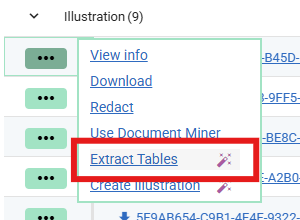
- From the Documents Page: Click the Action button next to an uploaded PDF document, then select Extract Tables as shown below.
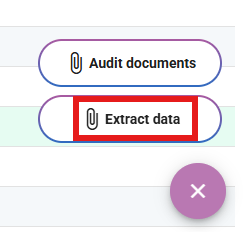
- From the AI button: Click the AI floating action button in the bottom-right corner of the case page and select Extract Tables.
Processing & Output
- Launch the Wizard: A wizard will appear listing the documents associated with the case. If you triggered the process from the Documents page, your file will be pre-selected automatically. (If using the floating action button, select the target PDF from the list).
- Run Extraction: Click Extract Tables to begin processing.
- Download Results: After approximately 45 seconds, Document Miner generates an Excel workbook containing all extracted tables (structured across multiple tabs if several tables are detected). The resulting file is made available to preview or download directly on the Documents page of the case.
Excel Workbook structure
- Page-Numbered Tabs: The workbook contains a separate worksheet for each table identified, with each tab explicitly labelled with the source page number where the table was found.
- Data-Rich Highlighting: Worksheets containing data-rich tables have their tabs highlighted in red for rapid identification.
- Data Transfer: Some elements allow you to directly copy the data to facilitate content creation in ClariNet - for example, you can copy and paste directly into a ClariNet illustration table.